Your project structure.
Ready to repeat.
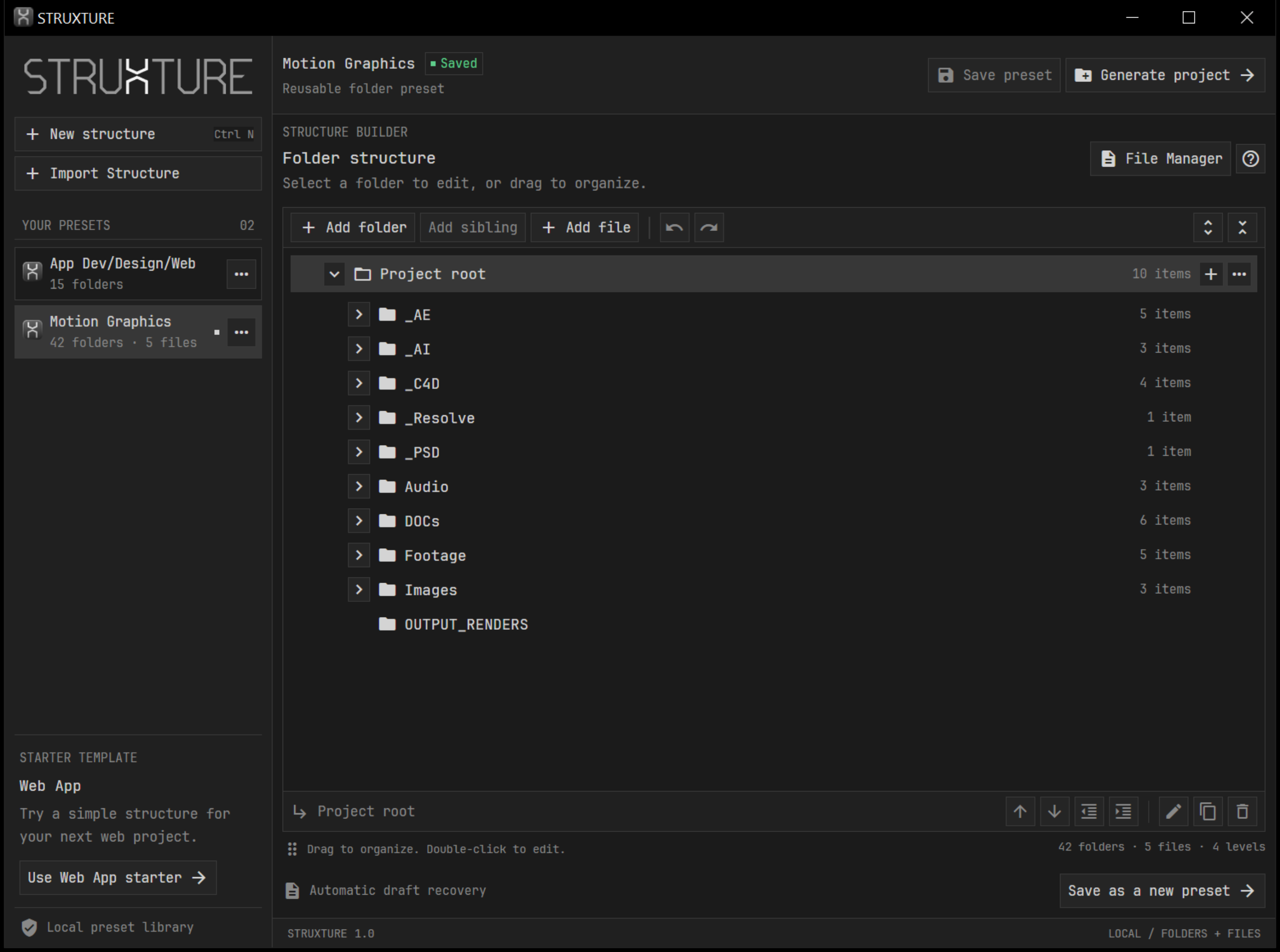
Build your folder layout, add the template files you use most, and save it as a preset. Generate a fresh project whenever you need one. Share the same setup across computers.
Build once.
Start from it again.
Turn your usual project setup into a preset you can use for the next brief, client, or production.
-
01
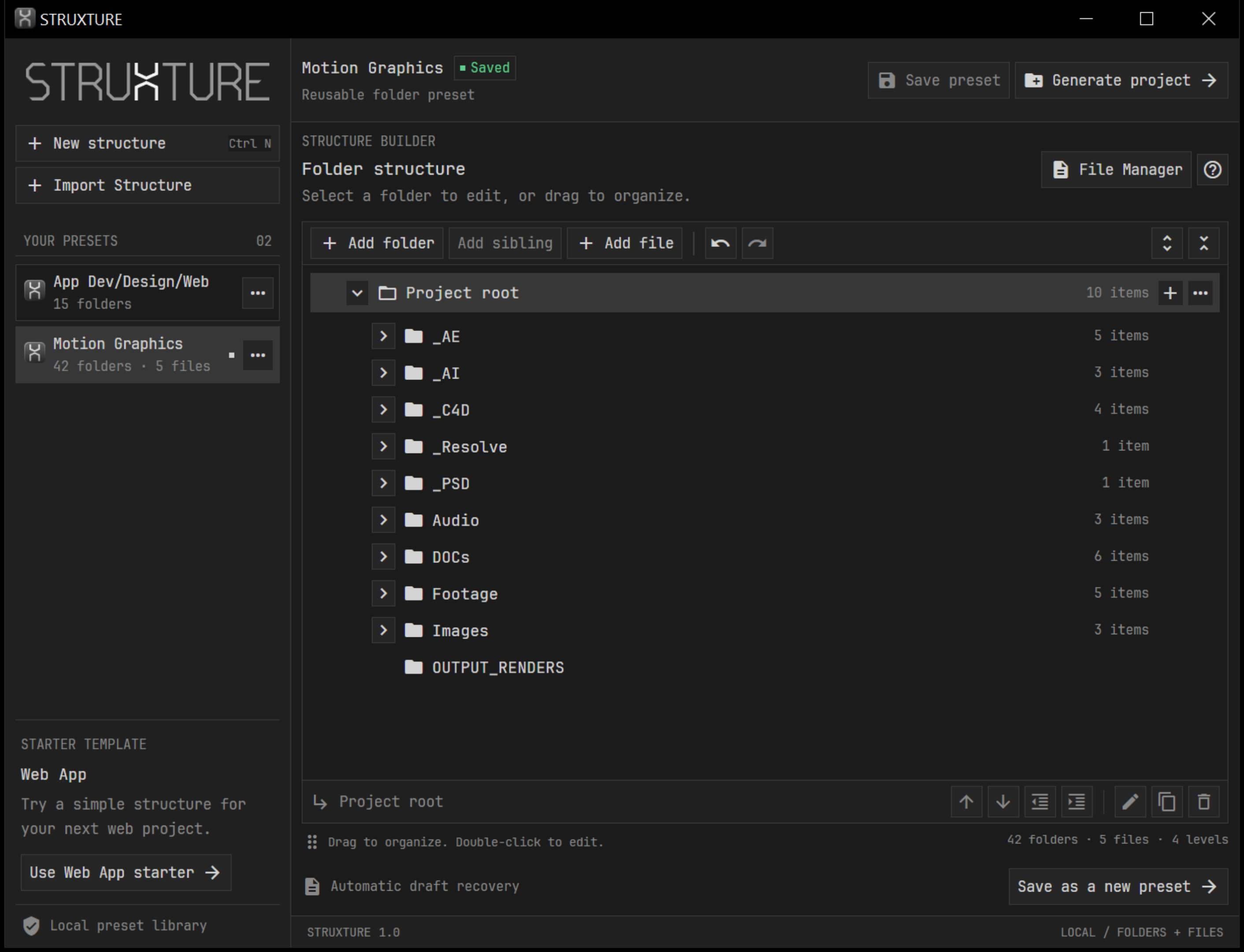
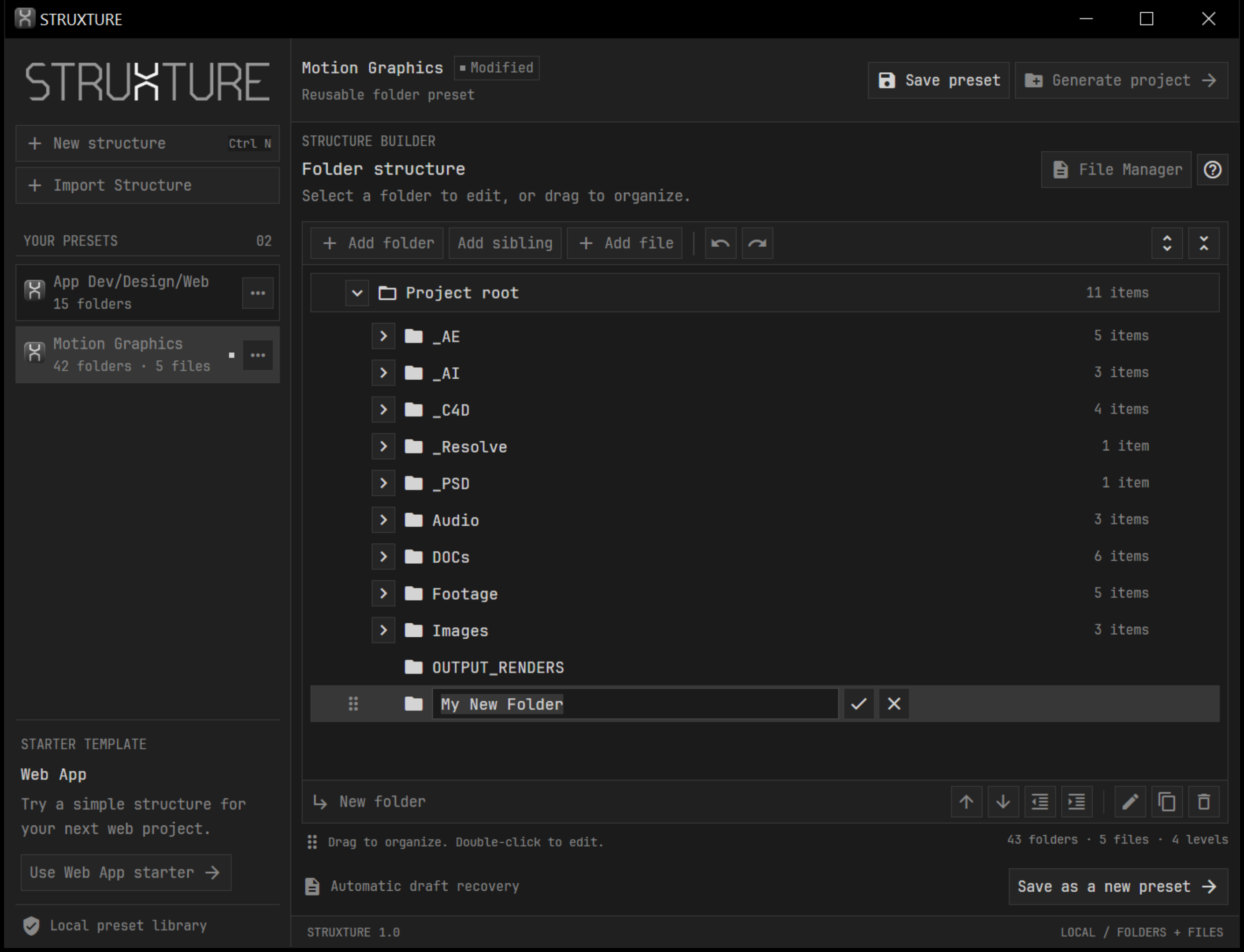
Shape your structureAdd folders, nest branches, and arrange the layout around the way you work.
-
02
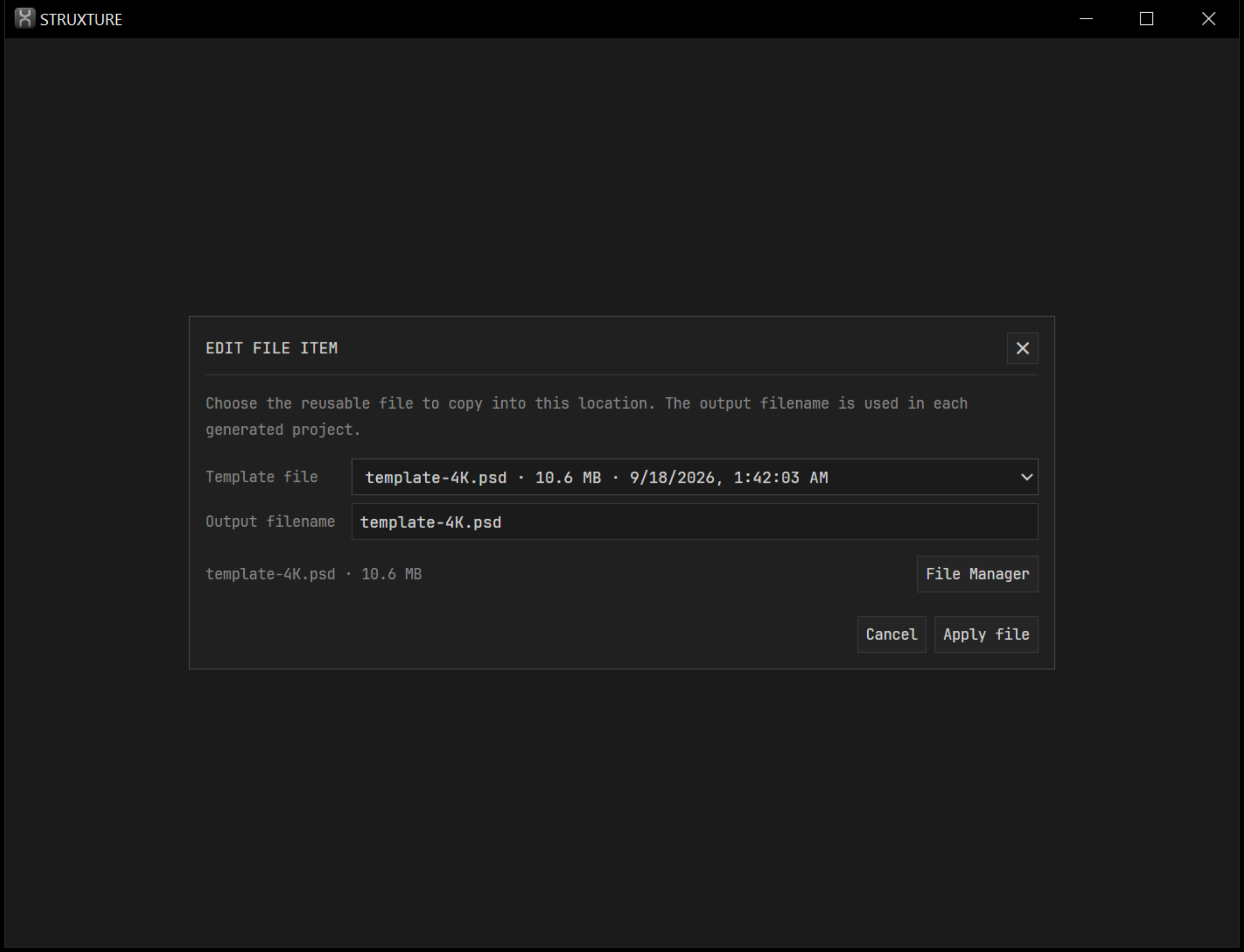
Add your starting filesImport reusable files, then place them exactly where they belong in the tree.
-
03
Generate your projectChoose a name and destination. STRUXTURE creates the folders and copies in your templates.
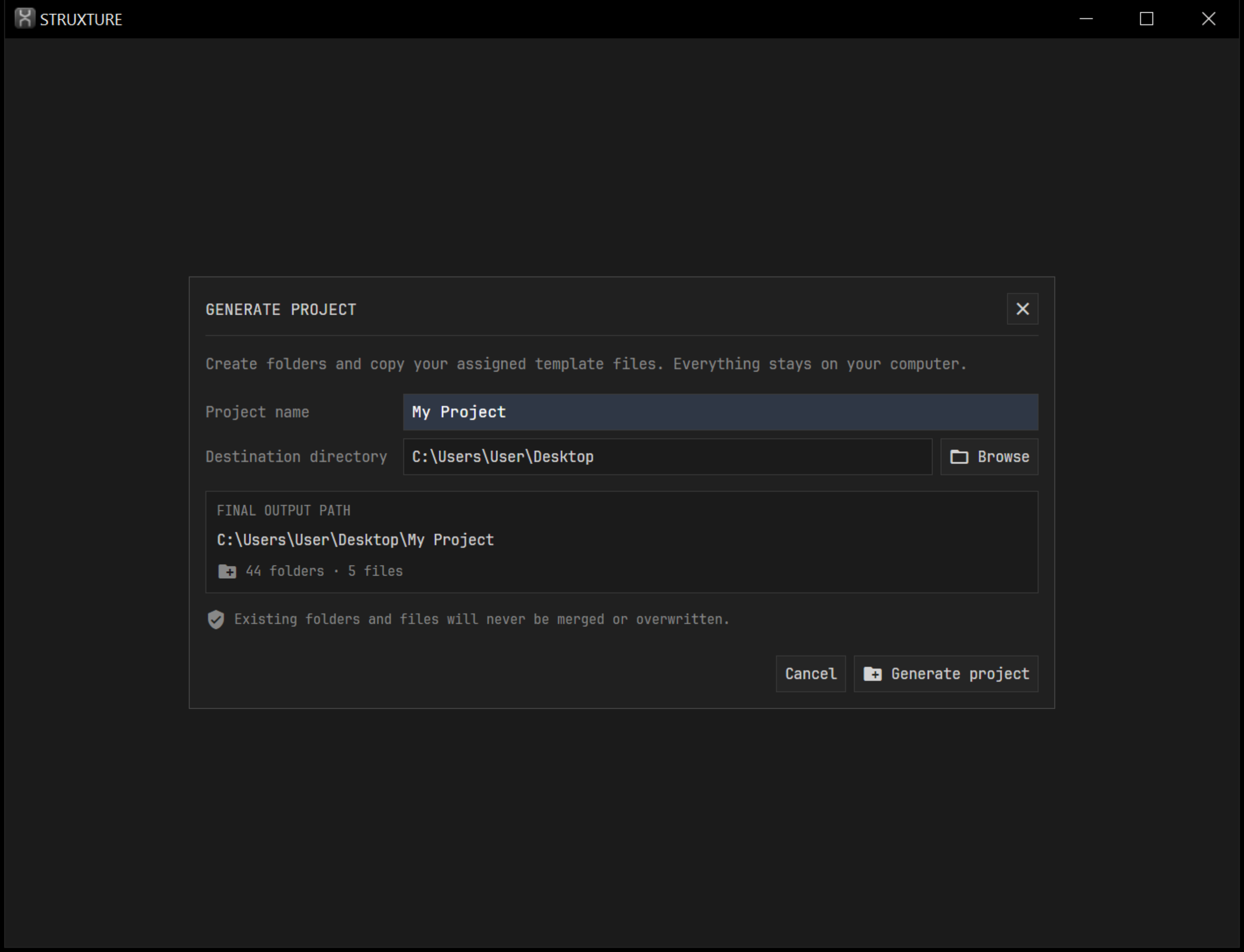
The setup you use.
Saved in one place.
Keep your folder layout and reusable files together, ready for the next project.
Different machines. The same project structure.
Give everyone the same folders and starting files. Export a saved preset with its assets, then import it on each computer. Your team can begin from a consistent setup without rebuilding it by hand.
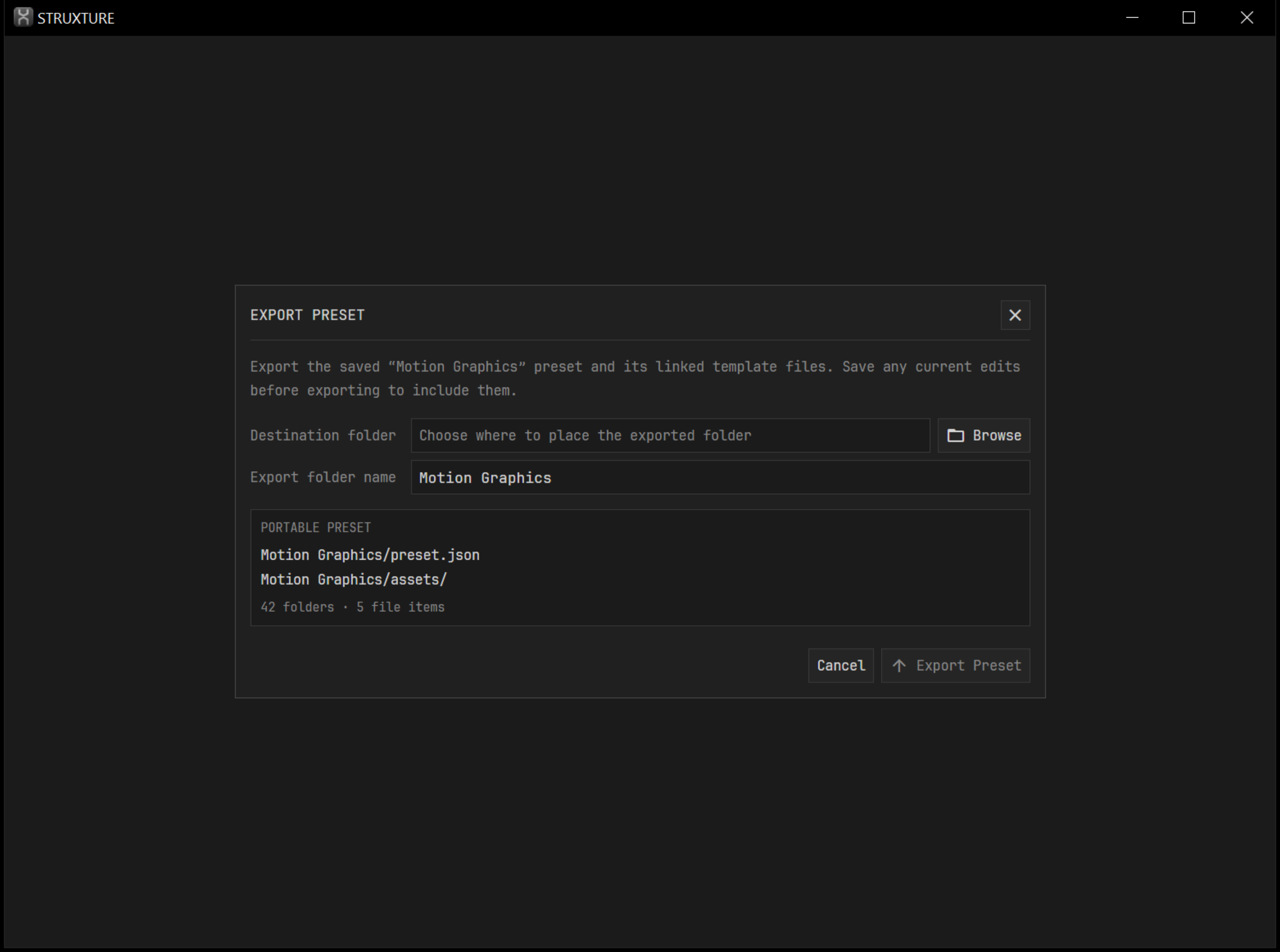

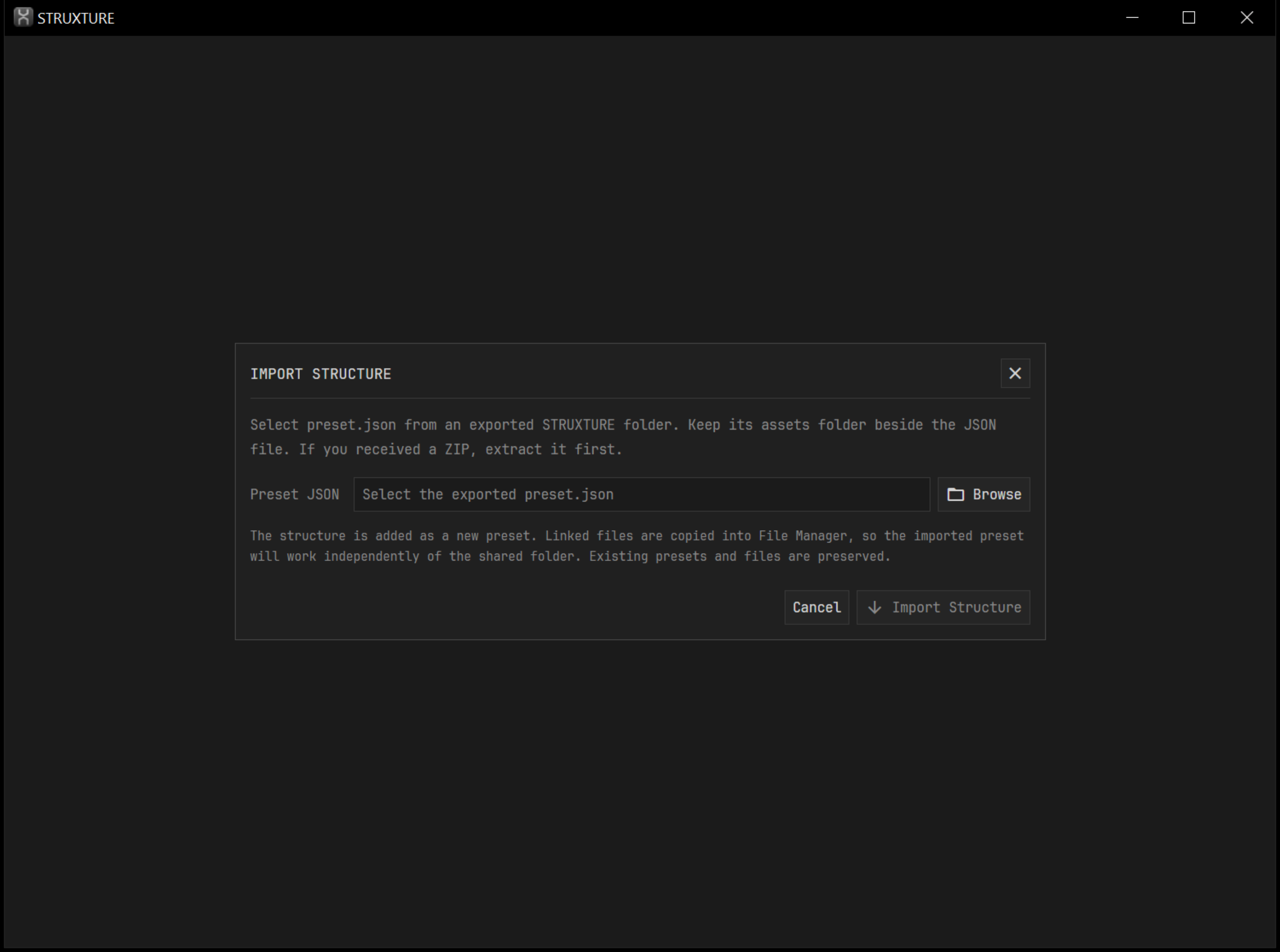
→Sharing uses export and import. Each computer keeps its own copy; changes do not sync automatically or update projects already created.
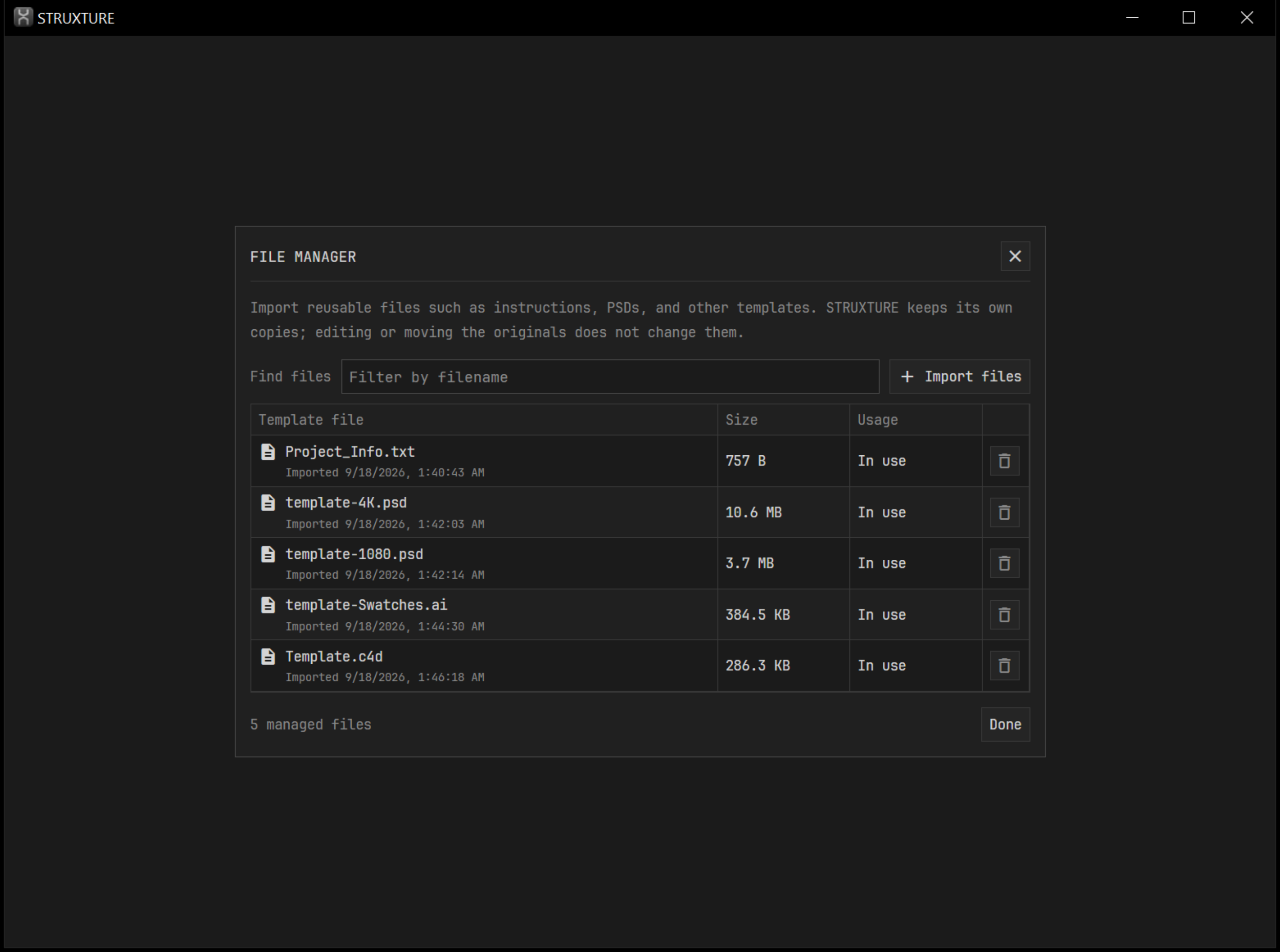
Your Adobe starting files, already in place.
Include the PSD, Illustrator, InDesign, After Effects, or Premiere Pro files you reuse. Assign them to your structure, and each new project begins with fresh copies in the right folders.


→STRUXTURE copies the files you include. Add any linked assets your Adobe project needs; fonts, plugins, and other dependencies are not collected automatically.
Keep building
from the keyboard.
Navigate the tree, edit names, move branches, and save presets without breaking your flow.
Tree shortcuts work when a tree row has focus. Global shortcuts pause while a dialog is open. The project root cannot be deleted.
A few things
to know.
Can I use the same structure on multiple computers?
Yes. Export a saved preset with its assets, then import it on each Windows computer. Share the entire export folder so the structure and its files travel together.
Can my team use the same project setup?
Yes. Distribute the same exported preset to your team so everyone starts with the same folders and templates. When the setup changes, share a new export. Updates are imported manually.
Which template files can I include?
Include text documents, PSDs, Illustrator files, InDesign documents, Adobe project files, and other reusable files. STRUXTURE copies them as they are. Add linked media or other assets separately when your template depends on them.
Will editing the original update my template?
No. File Manager stores an independent copy when you import a file. Import a revised version and update its assignments when you want future projects to use it.
Will generating a project overwrite my work?
No. STRUXTURE requires a new project folder. If that name already exists at the destination, choose another name or location.
Does sharing keep everything in sync?
No. Export and import create independent copies on each machine. Preset changes do not automatically reach teammates or alter projects already generated.
Do I need an account or cloud storage?
No. STRUXTURE stores presets and managed files locally. You choose how to transfer exported presets between computers.
Can I import a ZIP file?
Extract it first, then choose + Import Structure and select preset.json. Keep its assets folder beside it.
Which platform does STRUXTURE run on?
The current build is a Windows desktop app that uses Microsoft Edge WebView2.
Make your next project a familiar start.
Bring your folder structure and working templates together. Save the setup you want to use again.
Buy for Windows + Mac | $5.99