BigCap — User Guide
BigCap captures full-page website screenshots — the entire scrolling page, not just the part on screen — and saves them as PNG, JPEG, or PDF. It runs entirely on your computer; nothing is sent to the cloud.
1. Installing & launching
- Run
BigCap.msiand follow the installer. - Because current builds are unsigned, Windows SmartScreen may show "Windows protected your PC." Click More info → Run anyway to continue.
- On the installer's final page, click Launch App to open BigCap immediately, or start it later from the Start menu / desktop shortcut.
BigCap opens as a small dark window. On Windows 11 it has rounded corners; on Windows 10 the window is square (a platform limitation).
2. The main window at a glance
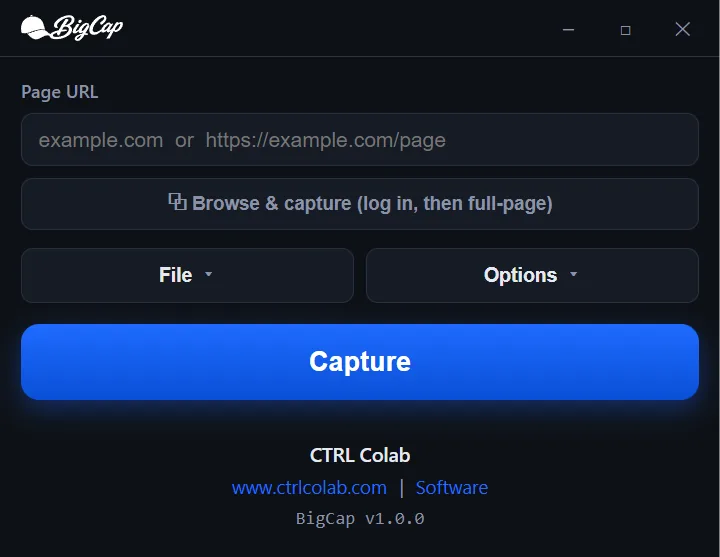
From top to bottom:
- Title bar — the BigCap logo and the minimize / maximize / close buttons.
- Page URL — where you type or paste the address to capture.
- ⧉ Browse & capture — opens an in-app browser for pages that need a login or setup (see section 7).
- File and Options buttons — two menus that hold all the settings, so the main window stays uncluttered. Click one to open it; clicking the other (or anywhere outside) closes it.
- Capture — the big blue button that starts a capture. While a capture is running it turns into Cancel.
- Progress bar — appears during a capture and shows the current stage.
- Result area — the preview, file details, and action buttons appear here when a capture finishes.
- Footer — CTRL Colab, the website link, and the version number.
The window automatically grows and shrinks to fit whatever's showing, so you never get a scrollbar in normal use.
3. Your first capture
- Type a URL into Page URL (e.g.
example.com— you can omithttps://). - Click Capture (or press Enter while the URL field is focused).
- Watch the progress bar move through its stages:
- Loading — fetching the page.
- Settling — waiting for fonts and an optional delay.
- Scrolling — scrolling top-to-bottom to trigger lazy content.
- Capturing — taking the full-page shot.
- When it's done, the preview appears with the image dimensions, format, and file size.
- Click Save As… to write it to disk (or Copy / Open folder).
To capture something else, click Capture another — this clears the preview and puts the cursor back in the URL field.
4. The File menu — output settings
Click File to open these controls. They control what the output looks like.

Width & presets
The page is rendered at this width in CSS pixels (default 1280). Quick presets:
| Preset | Width |
|---|---|
| Mobile | 430 px |
| Tablet | 1024 px |
| Desktop | 1920 px |
| Large | 2560 px |
Click a preset to set the width, or type any value. The active preset highlights in blue; typing a custom width clears the highlight.
Scale
- 1× — standard resolution.
- 2× — retina/high-DPI; doubles the pixel dimensions of the output (sharper, larger files).
Format
- PNG — Raw format. Lossless, best for crisp UI and text. Default.
- JPEG — Compressed format. Smaller files; a quality slider (1–100) appears when selected.
- PDF — Selectable text. A single content-sized page with real, selectable text (great for archiving/printing). Note: PDFs can't be copied to the clipboard as an image.
Max Length (on, 20 by default)
Caps the capture at N screens tall (one screen ≈ 900 px). This protects you from infinite-scroll pages and respects the ~16,384 px height limit Chromium imposes on a single capture. If a page is taller than the cap, you still get a capture — trimmed at the limit — with a visible warning telling you it was truncated.
Break (off by default)
Splits the saved image into multiple files, each N screens tall — useful for very long pages you want in digestible pieces. When on, saving produces name-01.png, name-02.png, and so on. Break applies to PNG and JPEG only and is disabled when the format is PDF.
5. The Options menu — capture settings
Click Options to open these. They control how the page is prepared before capture. Most people never need to change them.

Delay (on, 5 sec)
An extra wait, in seconds, before the shot is taken — on top of BigCap's automatic font/image waiting. Increase it for slow or heavily animated pages that need a moment to settle.
Hide ads & cookie banners (off)
Hides cookie/consent banners and common ad slots so they don't clutter the capture. It targets ads and consent banners specifically and leaves normal site content (heroes, nav, promo bars) alone.
Block ad & tracker requests (off)
A stronger, network-level option: it cancels requests to known ad, tracker, and consent-management domains before they load. Because the consent script never runs, this can remove stubborn banners that the cosmetic option above can't reach. Trade-off: a few sites detect blocked requests and show an "allow ads to continue" wall.
Reveal on-scroll fade-in content (on)
Many sites start elements invisible and fade them in as you scroll. Since a full-page shot is composited from the top, those elements could otherwise be missing. This forces them visible. Leave it on unless a specific page looks wrong — then try turning it off.
Neutralize sticky / fixed headers (off — fallback)
Rarely needed. BigCap's capture method already renders fixed/sticky elements once at the top without duplicating them. Enable this only as a fallback if a sticky header misbehaves.
Freeze animations & media (off)
Pauses CSS animations and media so you get a clean, deterministic frame instead of catching an animation mid-motion.
Load timeout (30 sec)
How long BigCap waits for the page to load before giving up with a friendly error. Raise it for slow sites.
6. Working with the result
When a capture finishes you get:
- Preview — an interactive viewer. Scroll to zoom (toward the cursor), drag to pan, and double-click to reset to the fitted view. (PDFs show in a standard PDF preview instead.)
- Details line — pixel dimensions, format, and file size.
- Truncation warning — shown only if the page was taller than your Max Length / the Chromium limit.
Action buttons:
- Save As… — choose where to save. If Break is on (PNG/JPEG), this writes the numbered set of segment files and tells you how many.
- Copy — copies the image to the clipboard (PNG/JPEG only; disabled for PDF).
- Open folder — opens the folder of your last save.
- Capture another — clears everything to start fresh.
Your last-used settings and save folder are remembered between sessions.
7. Browse & Capture — logged-in / interactive pages
Some pages need you to sign in, dismiss a prompt, or set something up first. For those:
- Click ⧉ Browse & capture. A browser window opens with a slim toolbar (back, forward, reload, address bar) above a live page.
- Navigate and log in as you normally would. The session is persistent — your logins and cookies stick between uses, so you don't have to sign in every time.
- When the page looks the way you want, click Capture full page.
- BigCap captures that live window at its current width, full height, and shows the result back in the main window — where you can Save / Copy / Open folder as usual.
The capture uses the same engine (lazy-image loading, scroll-reveal, optional ad-hiding) and honors your current settings. Click Cancel during a capture to stop it.
8. Common workflows
- Capture a normal page as PNG
URL → Capture → Save As… - Save a page as a PDF with selectable text
File → Format → PDF → Capture → Save As… - Capture a very long page in pieces
File → turn Break on → set screens per file (e.g. 4) → Capture → Save As… → you getpage-01,page-02, … - Capture a page behind a login
⧉ Browse & capture → sign in → Capture full page. - Capture a mobile-width view at retina resolution
File → Width preset Mobile (430) → Scale 2× → Capture. - Get a clean capture without cookie banners/ads
Options → enable Hide ads & cookie banners (and, if a banner persists, Block ad & tracker requests) → Capture.
9. Troubleshooting
| Symptom | Try this |
|---|---|
| Some images are missing / half-loaded | Increase Delay (Options) and/or Load timeout. BigCap already loads and decodes images automatically, but very heavy pages benefit from more time. |
| Content that fades in on scroll is missing | Make sure Reveal on-scroll fade-in content is on (Options). |
| Capture is cut off at the bottom | Raise Max Length (File). Note the hard ~16,384 px per-capture limit — extremely tall pages will still truncate (with a warning). |
| A cookie/consent banner is in the shot | Enable Hide ads & cookie banners; if it persists (e.g. shadow-DOM widgets), also enable Block ad & tracker requests. |
| The page shows an "allow ads to continue" wall | Turn Block ad & tracker requests back off for that site. |
| A sticky header appears in the wrong place | Enable Neutralize sticky/fixed headers (Options) as a fallback. |
| The page never finishes loading | Click Cancel; increase Load timeout; or use Browse & Capture and shoot it once it looks ready. |
| The site requires a login | Use ⧉ Browse & capture. |
| PDF won't copy to clipboard | Copy is image-only by design — use Save As… for PDFs. |
| Windows SmartScreen blocks the installer | Click More info → Run anyway (builds are currently unsigned). |
10. FAQ
Does BigCap send my screenshots or the URLs I visit anywhere?
No. BigCap runs locally, and the only thing it ever sends CTRL Colab is its own licence check — activation when you enter your serial, then a background re-check roughly monthly. No telemetry, no account, no cloud; your captures never leave your machine. See the Privacy Policy for details.
What are the system requirements?
Windows 10 or 11, 64-bit.
What's the tallest page it can capture?
A single capture is limited to about 16,384 px tall (a Chromium limit). Use Max Length to control the cap, and Break to split a long capture into multiple files.
Why is 2× so much bigger?
2× renders at double the pixel density, so both width and height double — roughly 4× the pixels and file size. Use it when you need crisp, high-DPI output.
Can I capture pages that require signing in?
Yes — use Browse & Capture, which keeps a persistent session.
Do my settings carry over?
Yes. Your last-used options and save folder are remembered.
11. Where your data lives
BigCap stores a small settings file and (if you use Browse & Capture) your session cookies in its user-data folder — on Windows, typically %APPDATA%\BigCap.
- Reset preferences: delete
settings.jsonin that folder. - Clear saved logins: delete the
%APPDATA%\BigCapfolder. - Remove everything: uninstall BigCap and delete that folder. Screenshots you saved yourself stay wherever you saved them.
Questions or issues? Contact CTRL Colab at support@ctrlcolab.com · www.ctrlcolab.com
© 2026 CTRL Colab. All rights reserved.