RepoBoss Help
RepoBoss is version control and backup that runs on your own machines. Your work is protected automatically to disks you choose, your history stays yours, and your team connects directly to you — no cloud account, no subscription, nothing to trust with your source code. This guide covers every feature, start to finish.
1. What RepoBoss is
RepoBoss does three things, and it is worth being clear about which is which, because most tools do only one of them.
- It keeps your history. Every project you add is a real Git repository — the same format the rest of the industry uses. RepoBoss puts a plain-language interface over it, but never locks you in: any other Git tool can open your projects, today or in ten years.
- It protects your work. Commit, and RepoBoss copies that history to the Safety Vaults you nominate — a second internal drive, an external disk, a NAS folder — and verifies the copy arrived. If a vault is unplugged, the work queues and lands when you reconnect.
- It connects your team. Your machine can host your projects for other people directly. You send a collaborator one image file — an Access Card — and they are set up. There is no server to rent, no organization to create, no third party holding your code.
What it does not do
RepoBoss is not a cloud service and has no account system. It does not upload your work anywhere you did not configure. It does not replace Git — it drives the real thing. And it protects committed history: files you have never saved into a project are not backed up by it, and the app never claims otherwise.
2. Installing & your license
Installing
Run the installer and accept the license agreement. RepoBoss installs for the current user by default and needs no administrator rights; the dialog offers an all-users install if you want one. A background service — the part that does the actual work — starts with you and keeps running whether or not the window is open. That is deliberate: protection that only happens while an app is open is not protection.
Your license
RepoBoss is bought once, not subscribed to. Every purchase includes two kinds of serial number, and the one you enter decides what that machine can do:
| License | What it unlocks | Who installs it |
|---|---|---|
| Server | Everything, including hosting your team and issuing Access Cards. | You, on the machine that hosts. |
| Client | Everything except hosting and issuing — the full local product, plus joining a host. | Each collaborator, on their own machine. |
An Indie purchase includes one server serial and three client serials; Studio includes one server and ten. Each serial covers one machine. The number of people who may hold access to your projects is a separate limit, enforced on your own host where it belongs (section 9).
How activation works
The first time you open RepoBoss it asks for your serial, sends it to our activation server along with an anonymous machine identifier, and receives back a signed activation for that computer. From then on the check happens locally, offline, every launch — RepoBoss does not need the network to start, and does not ask again.
Roughly once a month, when it happens to be online, RepoBoss re-checks the serial in the background. That check is deliberately one-sided:
- Silence never locks you out. RepoBoss works offline with no time limit. It works if our website is down, and it will keep working if CTRL Colab one day stops trading — the failure mode of every check is keep working.
- Only a signed answer from us deactivates a copy, and that happens when a purchase is refunded or charged back. A refund revokes the whole set — the server serial and its clients.
- The check carries three things: your serial, the anonymous machine identifier, and the app version. Never your files, file names, project names, or anything about how you work.
Keep your serial where you can find it. If you lose it, email us from your purchase address and we will send it again. You can see what is activated under Settings → License.
3. The window
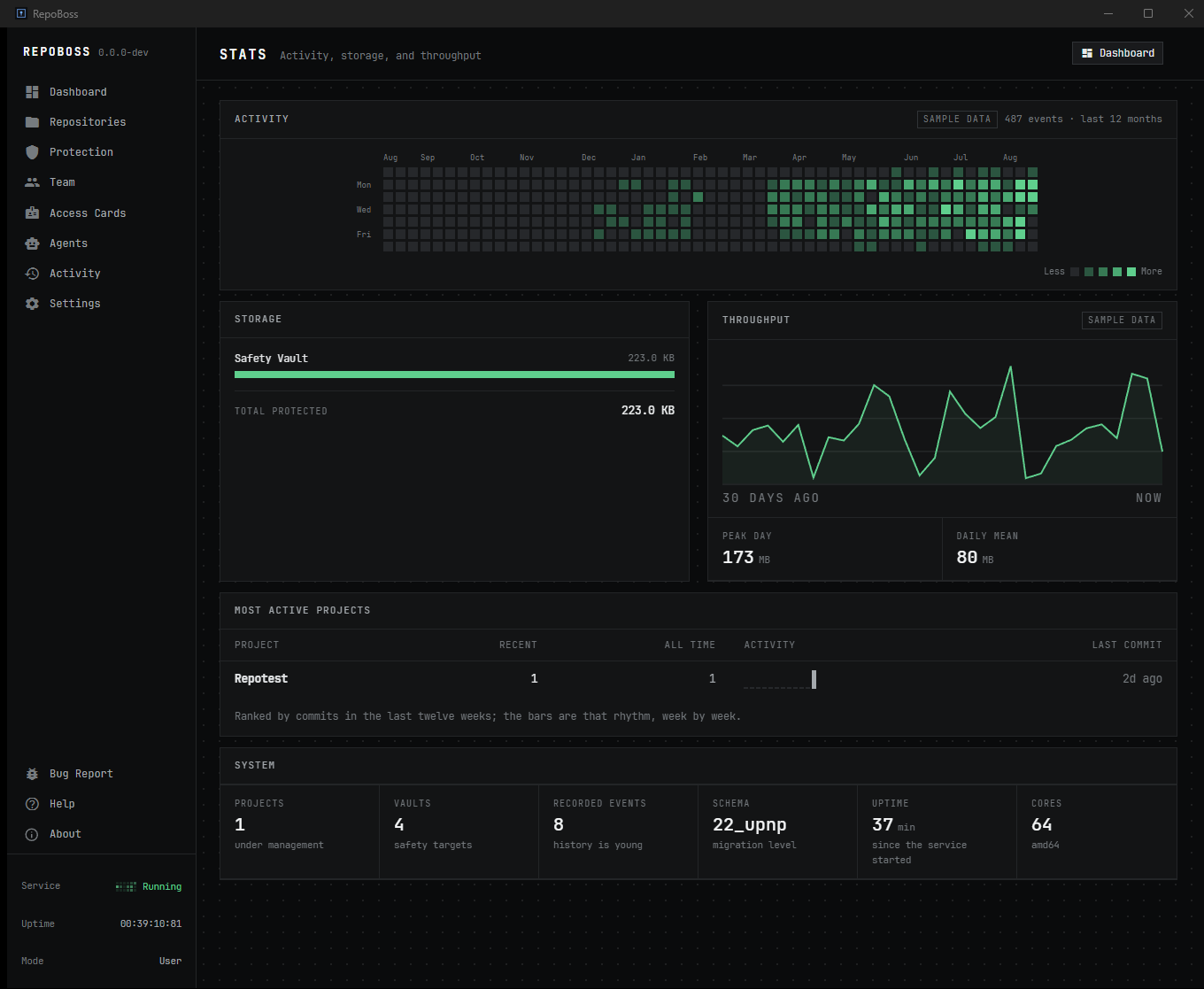
The rail on the left is the product. Each entry is a screen, and a small count appears beside one only when something is genuinely waiting on you — an approval to answer, a project with no protection. No badge means nothing needs you.
| Screen | What lives there |
|---|---|
| Dashboard | What needs attention, and the first-run setup path. |
| Repositories | Your projects, and everything you do to one. |
| Protection | Safety Vaults and what has reached them. |
| Team | This machine as a host: people, access, reachability. |
| Access Cards | Cards you have issued, and cards issued to you. |
| Agents | AI coding agents, their permissions, and their pending requests. |
| Activity | Every consequential act, in order, tamper-evident. |
| Settings | This installation: version, license, updates, diagnostics. |
At the foot of the rail: Service shows whether the background worker is Running, with a live uptime clock beside it, plus Bug Report, Help and About. If Service ever reads stopped, nothing has been lost — starting it picks up exactly where it left off.
4. Projects
A project is a folder of work that RepoBoss looks after. Press + New Repo (top right on Dashboard and Repositories) and point at a folder.
- If the folder is already a Git repository, RepoBoss adopts it as it is. Nothing is rewritten and no history changes.
- If it is an ordinary folder — which is what a first project usually is — RepoBoss offers to make it a repository, and says plainly what it did. You do not need to know what "init" means to get a protected project.
The list shows each project's name, when it was last updated, how many files are unsaved, and small markers for whether it has reached its vaults, whether it is a fork, and whether it is published to GitHub. A marker only turns green when that thing is actually current — not merely configured.
Working with one project
Open a project and you get tabs for its detail: Overview (state and quick actions), Changes, History, Branches, Tags, Ignore and Publish. Each row in the list also has a Manage menu for the one-stroke version of the common jobs.
Ignoring files
The Ignore tab is a two-pane picker: folders on the left, their contents on the right. Tick a folder to exclude all of it, or open it and tick individual files — the folder then shows a partial mark. RepoBoss composes the correct patterns for you and is honest about a case Git handles badly: a file that is already tracked does not stop being tracked just because you ignore it, and the app tells you so instead of leaving you to discover it later.
Forks
Fork makes a project into its own separate project — a real copy with its own folder and its own protection — while recording where it came from. When the experiment works, Fold merges it back into the original. RepoBoss refuses to fold into a project with unsaved changes, and if the merge conflicts it stops and names the files rather than leaving you in a half-merged state.
Removing a project
Remove takes a project out of RepoBoss and leaves your files alone. Remove completely is the destructive one: it deletes the working folder and its history. It requires you to type the word Remove, it copies to your vaults first, it refuses unusual folder shapes it cannot verify, and it reports anything it could not reach rather than claiming success. It is also recorded in Activity.
5. Saving your work
In Git terms this is staging and committing; in RepoBoss it is choosing what to save and writing one line about why. The Changes tab lists what has moved since your last save. Tick the files you mean, write the note, and save. Commit everything in the Manage menu does the obvious thing when you just want it all in.
A saved commit immediately becomes eligible for protection (section 6) — you do not press anything else.
Branches and tags
A branch is a parallel line of work: make one to try something without disturbing the main line, switch between them freely, and merge when it is ready. A tag is a name pinned to one exact moment — a delivery, a release, an approved cut — so you can come back to precisely that.
Deleting a branch in RepoBoss is not the loss it is in raw Git: see section 7.
6. Protection & Safety Vaults
A Safety Vault is a location that holds a complete copy of a project's history. It is a real Git repository on that disk, not an archive format only RepoBoss can read — you could recover from it with plain Git and no RepoBoss at all.
Add vaults on the Protection screen. Good choices are a different physical disk from the one you work on, an external drive, or a network folder. Two vaults on the same disk protect you from mistakes but not from that disk failing, and RepoBoss will say so.
What happens automatically
- Every commit is copied to each vault configured for that project.
- The copy is verified, not assumed: RepoBoss checks the objects arrived.
- If a vault is unavailable — drive unplugged, NAS asleep — the work goes into a durable queue and is delivered when the vault reappears. The queue survives restarts and crashes.
- Protection state is reported honestly: a project shows protected only when its history has actually reached a vault, never merely because one is configured.
7. Getting work back
This is why the rest exists. RepoBoss keeps several distinct ways back.
Recovery points
A recovery point is a marked moment you can return to. RepoBoss creates them around risky operations and you can create one yourself before doing something you are unsure about. Restoring offers you choices rather than one destructive default:
- Restore files — bring back the file contents, leaving your history intact.
- Restore to a branch — put that moment on a new branch to inspect side by side.
- Clone it out — write that moment to a fresh folder and touch nothing else.
- Restore in place — the full rewind, offered last and clearly labelled.
Deleted branches are preserved
When a branch is deleted, RepoBoss keeps a copy in the Safety Vault before it goes, and verifies that copy exists. Deleting a branch by mistake — the classic irreversible Git accident — is recoverable here.
Health checks
Each project has a health check covering the conditions that quietly break repositories: unusual file names, case collisions that only appear on another operating system, oversized files, and folder shapes that will not survive a move. It tells you in plain language what to do about each.
8. Publishing to GitHub
RepoBoss does not require GitHub, and hosting your own team (section 9) needs no cloud at all. But publishing is there when you want it — for an open-source release, a client who expects a GitHub link, or an extra offsite copy.
Connect your account once under a project's Publish tab. RepoBoss uses GitHub's device flow: it shows you a short code, you approve it in your browser, and no password ever passes through the app. Credentials are stored in your operating system's own secret store, never in RepoBoss's database, its logs, or anything an AI agent can read.
New repositories are created private. Making one public is a separate, deliberate act with its own confirmation — it is a one-way door for anything already pushed, and the app treats it that way.
9. Hosting your team
Hosting turns your machine into the place your collaborators work with. Your projects stay on your disk. There is no server to rent and no third party in the middle.
On the Team screen, choose Set up hosting. You give your organization a name and choose a Team Vault — the folder holding the authoritative copies your team pushes to and pulls from. That is the whole setup.
People, roles and access
Add a person, then grant them access to specific projects with a role. Roles are about what someone may do, not who they are:
| Role | Typically |
|---|---|
| Owner / Administrator | Full control, including access and policy. |
| Maintainer | Works on protected branches, merges others' work. |
| Contributor | Works on their own branches; protected branches are enforced. |
| Reviewer / Read-only | Can see the work, cannot change it. |
Access is per project — a person sees only what you have granted, and discovery never reveals the existence of anything else. Grants can carry an expiry date, which is exactly what you want for a contractor. When a grant expires or is revoked, that person's access stops, and the seat they held frees up.
Branch policy is enforced on the host itself, when a push arrives — not as a suggestion in someone's client. A push that breaks the rule is refused, with the reason.
10. Reachability
Hosting is only useful if your team can actually reach you, and home and office networks are hostile to that by default. The Reachability panel on the Team screen answers the question by testing, not assuming — and it is careful to distinguish what it has proven from what it has merely configured.
| State | Means |
|---|---|
| PROVEN | A real connection was made and your host's identity verified. This is not an inference. |
| CONFIGURED | Set up correctly on your side, but a machine cannot prove its own inbound reachability — confirm from another device, or rely on a relay. |
| FAILED | It should have worked and did not. The line says why. |
| OFF | Not configured, with a note on what turning it on would do. |
Press Set up reachability… and answer one question — who should be able to reach this host?
- This machine only. Nothing is exposed. Right for a solo setup, or before you are ready for collaborators.
- My network. Other devices in your studio or house connect directly. RepoBoss binds a network address and, on Windows, offers to add the firewall rule for you — Windows asks for permission, and that prompt is the consent. The rule covers private networks only, never public Wi-Fi.
- Anywhere. For collaborators in other cities. Two routes, and either is enough: a relay you run, or a router port mapping (UPnP).
About the relay
repoboss-relay is a small program that ships with RepoBoss and that you run on any machine
with a public address — a low-cost cloud instance is plenty. It is the most reliable route because your
host only ever dials out to it, so it works through firewalls and needs nothing from your
router.
A relay cannot read your work. Encryption terminates at your host, and each collaborator verifies your host's identity fingerprint before trusting a byte — the relay only forwards traffic it cannot open. Run it wherever is convenient; it holds no keys and stores nothing.
About UPnP
The router option asks your router to forward a port automatically. Many consumer routers ship with UPnP disabled — several ISP-supplied models do not offer it at all — and RepoBoss reports that refusal plainly instead of leaving you guessing. If your router declines, a manual port forward works, and the relay needs nothing from the router at all.
11. Access Cards
An Access Card is how someone joins your team. It is a single image file: everything the other machine needs — who they are, which projects, your host's address and identity — is carried inside the picture. You send the card however you like, tell them the password separately, and they are set up. There is no address to type, no key to manage, no account to create.
Issuing a card
- Add the person on the Team screen and grant them access to the projects they need.
- On Access Cards, press Issue a card and choose them.
- RepoBoss shows a one-time password on its own screen. It is shown once. Give it to the person by a different route than the card itself — a phone call, a message — because the two together are the access.
- Save the card file and send it.
Designing your cards
Card design sets what the cards look like: your logo, card colour, text colour, and portrait or landscape. The preview is rendered by the same code that renders the real thing. A JPG logo can have its background knocked out automatically.
Managing issued cards
The wallet lists what you have issued and its state — active, expired, exhausted, revoked. Revoke stops a card working. You can save the card file again later if someone loses theirs, archive the ones that are done with, and clear archived records outright.
12. Joining someone's host
If you received a card, install RepoBoss, enter the client serial that came with your team's purchase, and go to Access Cards. Under Cards that have been issued to you, press Import a Card — or simply drag the card file onto the window.
RepoBoss shows the card, scans it, and tells you plainly whether it is valid. Enter the password you were given, and the projects you have been granted appear in Repositories, ready to work with. What you may do with each is set by the person who issued the card.
You do not need to know where their machine is or how to reach it. That is carried in the card, and it keeps working when their address changes.
13. AI agents
RepoBoss expects you to use AI coding agents and gives them a supervised way in. An agent connects to RepoBoss with its own identity, so its actions are attributed to it rather than blurred into yours.
Agents → Set up prints the configuration for Claude Code or Codex. RepoBoss shows it rather than editing your files behind your back — you paste it yourself.
What an agent may and may not do
An agent can do the everyday work without ceremony: read status and diffs, stage, commit, create branches and tags, protect, and create recovery points. It cannot do the things that should stay human: it cannot answer its own approval requests, manage other agents, redeem cards, or administer your host. The boundary is enforced in the service — not in the agent's prompt, where it would be a suggestion.
Approvals
Riskier operations — publishing to the cloud, changing a repository's visibility — do not just fail for an agent. They create an approval request, which appears in your Agents screen with what was asked and why. You approve or deny. Approve, and the operation runs exactly once; the request cannot be reused. Deny, and it is refused. Every one of these is recorded.
14. Activity & audit
The Activity screen is the record: what happened, when, and who did it — people and agents alike. Commits, protection runs, grants given and revoked, cards issued and redeemed, approvals answered, publishes, removals.
The record is hash-chained: each entry is cryptographically linked to the one before it, so a missing or altered entry is detectable rather than silent. RepoBoss can verify the chain on demand. For a studio answering to a client about who touched what, that is the difference between a log and evidence.
15. Settings & updates
Settings shows this installation: version, mode, platform, whether the service is running, where its database lives, and your license.
Check for updates only runs when you press it — RepoBoss never looks for a new version on its own. Updates are cryptographically signed, so a tampered or unsigned update is refused rather than installed.
The one thing RepoBoss does contact us about by itself is your license, roughly monthly and in the background (section 2). That check carries your serial, an anonymous machine identifier and the app version — nothing about your work — and if it cannot reach us, nothing happens.
16. The command line
Everything the window does, repoboss can do from a terminal — useful for scripting, for
remote sessions, and for support. Add --json to most commands for machine-readable output.
repoboss status                     what this machine is doing
repoboss repo list                  your projects
repoboss repo import <path>         add a project
repoboss commit -m "message"        save your work
repoboss protect now <project>      copy to the vaults now
repoboss recovery list <project>    what you can return to

repoboss host status                hosting, at a glance
repoboss host reachability          probe every route to this host
repoboss host configure --relay <host:port>
repoboss access issue               issue a card
repoboss license status             what is installed

repoboss doctor                     check this installation
repoboss doctor --bundle            write a support bundle
17. When something is wrong
Start here
repoboss doctor checks the installation and explains what it finds, with the remedy rather
than a code. If you are contacting support, repoboss doctor --bundle writes a diagnostic
bundle: paths in it are redacted and it never contains your source code.
The service is stopped
The window offers Start RepoBoss. Nothing is lost while it is stopped — queued protection resumes where it left off.
A collaborator cannot connect
Open Team → Reachability and press Check now. If the relay row is PROVEN, your host is reachable and the problem is on their side — have them re-import their card. If no route is proven, section 10 is the fix.
A vault is not receiving
Check the drive is connected and the folder still exists. Work queues rather than being lost; reconnecting drains the queue. The Protection screen names what is waiting.
Activation problems
The serial is refused. Check it against your receipt — the serials are grouped in blocks to make them easy to read back. If it is right and still refused, it may already be activated on as many machines as it covers; email us and we will free one.
No internet on this machine. Activation needs one connection, once. If this machine can never reach the internet, we will issue an offline license file instead — see section 2.
RepoBoss says the license was revoked. That answer only comes from a refunded or charged-back purchase. If that is a surprise, email us and we will sort it out.
A card will not import
RepoBoss says which of the two problems it is: the file has been damaged (re-sent images are often re-compressed by chat apps — send it as a file attachment, not an inline image), or the password is wrong. If a card was revoked or has expired, it says that too.
18. Support & contact
Email hello@ctrlcolab.com. The Bug Report button at the foot of the rail opens a message with the essentials filled in; attaching a support bundle (section 17) usually turns a long exchange into a short one.
The license agreement is at ctrlcolab.com/repoboss/eula.